Unitra can put translated subtitles on your stream without capturing your screen. It serves its overlay as a local web page, and OBS shows that page as a Browser Source. Whatever Unitra hears, your mic or the game, shows up as subtitles that OBS can move, resize and record like any other source.
You need Unitra AI Desktop 0.11.4 or newer on Windows, and OBS Studio 28 or newer. Streamlabs Desktop and vMix work the same way, because they also have a Browser Source. The whole setup takes about five minutes.
Prefer to watch? The whole setup in 90 seconds:
1. Pick your languages
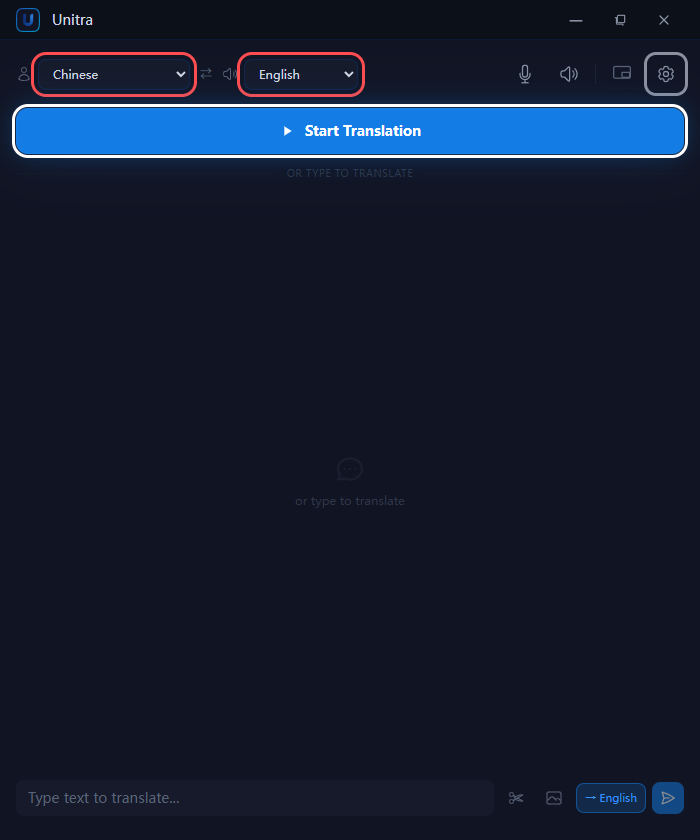
In the main window, the left dropdown is the language you speak. The right dropdown is the language your viewers read. Unitra translates your voice into the right-hand language, and translates game audio or voice chat in the right-hand language back into yours. Do not press Start Translation yet.
2. Choose how the subtitles look
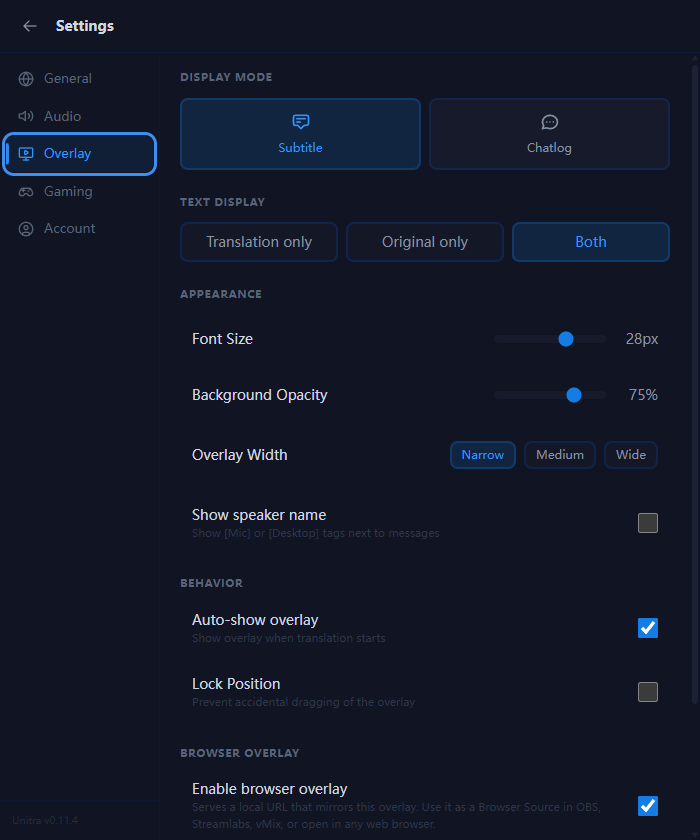
Open Settings > Overlay. Subtitle shows the last line or two at the bottom, like a film. Chatlog keeps a scrolling history. Under Text Display, Both shows the translation with the original underneath, and Translation only is the cleanest for viewers. 28px is a good font size at 1080p.
Everything on this tab also applies to what OBS shows, and changes apply live while you stream.
3. Turn on the browser overlay and copy the URL
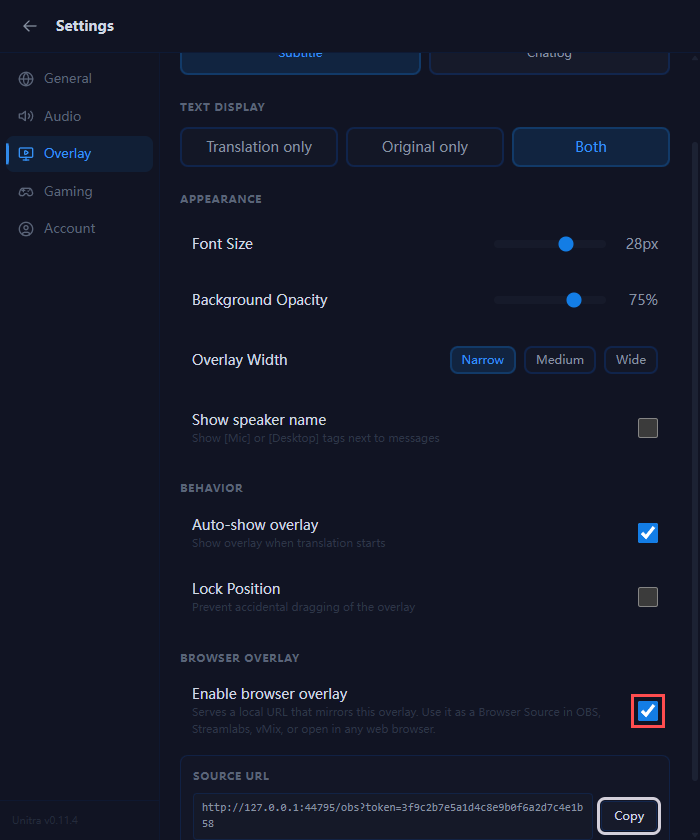
Scroll down to Browser Overlay and turn on Enable browser overlay. Click Copy next to the Source URL. The switch stays on across restarts and the URL stays the same, so you only do this once.
Two things worth knowing. The URL only works on this PC, so OBS has to run on the same machine as Unitra. And the URL contains a private token: keep it off stream. If you ever show it by accident, click Regenerate token and paste the new URL into OBS.
4. Add a Browser Source in OBS
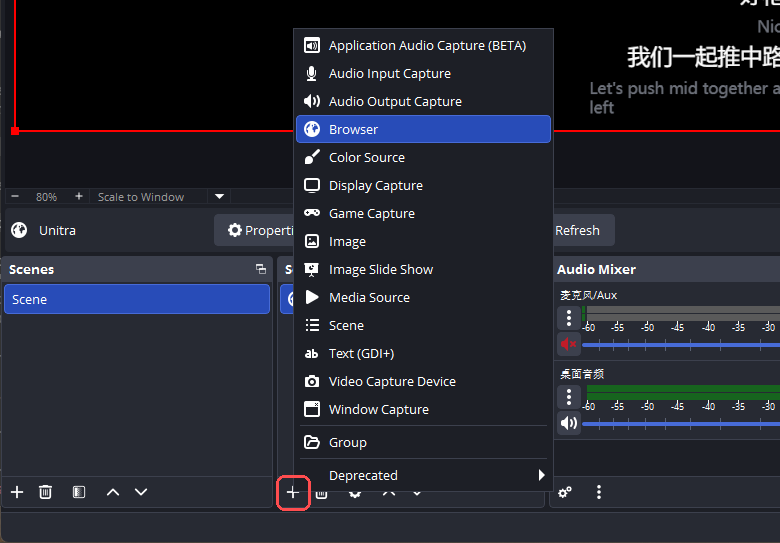
In OBS, click + at the bottom of the Sources panel and choose Browser.
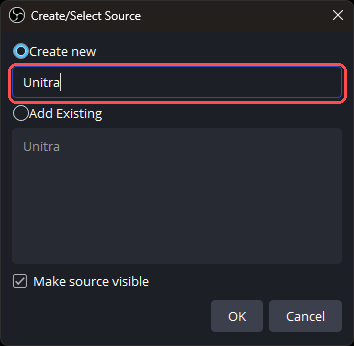
Give it a name, for example Unitra, and click OK.
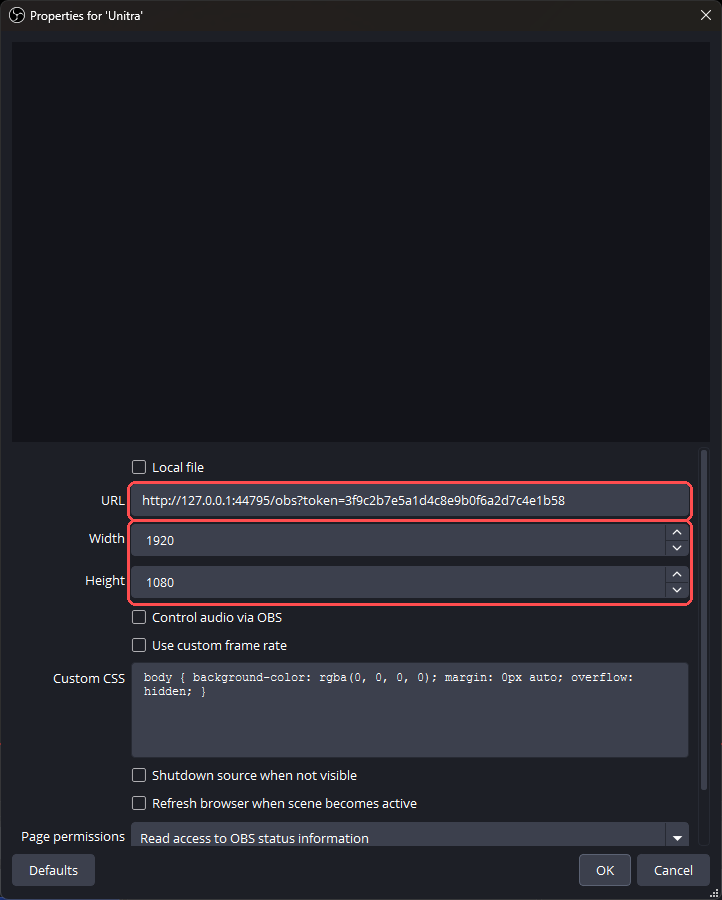
Paste the URL into the URL field. Set Width and Height to your canvas size, usually 1920 and 1080. Leave everything else at its default and click OK.
5. Start translating
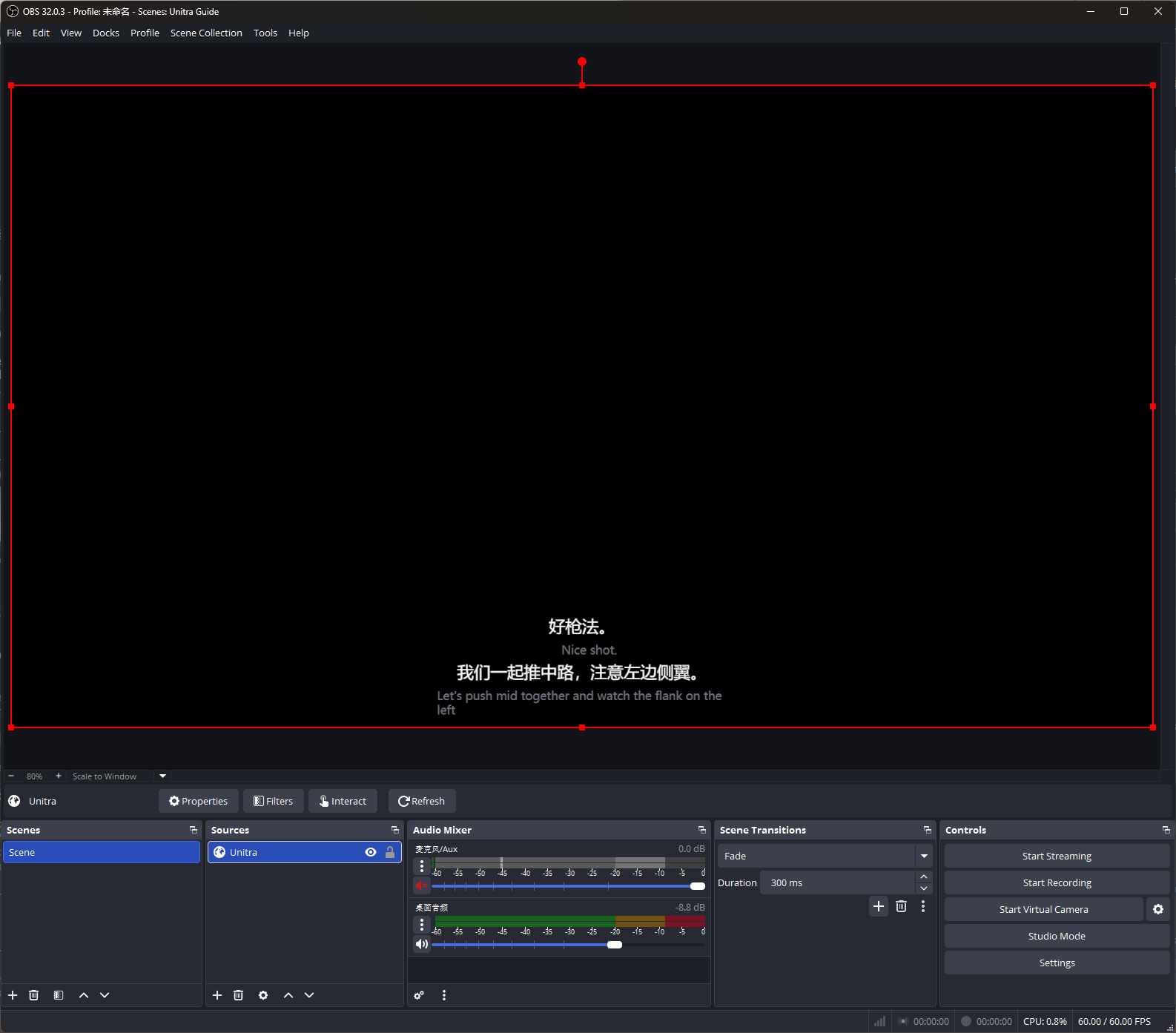
Back in Unitra, click Start Translation and say something. The subtitles appear in the OBS preview within a second or two, translation included. Move and resize the source like any other. In Subtitle mode the text sits at the bottom of the source, so a full-canvas source puts it at the bottom of the stream.
Two notes on what your viewers see:
- The overlay on your own monitor is for you. Game Capture does not pick it up, so viewers only see the OBS source. If you use Display Capture instead, hide the on-screen overlay with the overlay button in Unitra's toolbar, or your stream shows the subtitles twice.
- Turn on gaming mode under Settings > Gaming so callouts are translated as game terms. With Counter-Strike detected, "nice shot" becomes 好枪法 (good aim) rather than a compliment about a ball.
If nothing shows up
- The OBS preview stays empty. Unitra has to be running with translation started. Subtitles also fade out after a few seconds of silence, by design.
- It worked, then stopped. You probably clicked Regenerate token. Copy the new URL and paste it into the source's properties.
- Blank after restarting OBS while Unitra was closed. Open Unitra first, then open the source's properties in OBS and click Refresh cache of current page.
If something does not work as expected, let us know in Discord.