Subtitles help you understand your teammates. Voice Output helps them understand you. Unitra reads your translations aloud through a virtual microphone, the Unitra microphone, and your game or voice chat uses it like any other mic. You speak your language, and your teammates hear you in theirs, in your game or in Discord.
Voice Output is included with Champion (Legend and Creator accounts have it too). Day Pass does not include it. It runs on Windows, and the voice is generated on your own PC, so it needs a dedicated graphics card with at least 6 GB of video memory. It speaks ten languages: English, Chinese, Japanese, Korean, French, German, Spanish, Portuguese, Italian and Russian. You need Unitra AI Desktop 0.15 or newer.
The screenshots and the video are from Unitra AI Desktop 0.15 on Windows.
Prefer to watch? Here is the same setup on video:
1. Open Settings > Audio
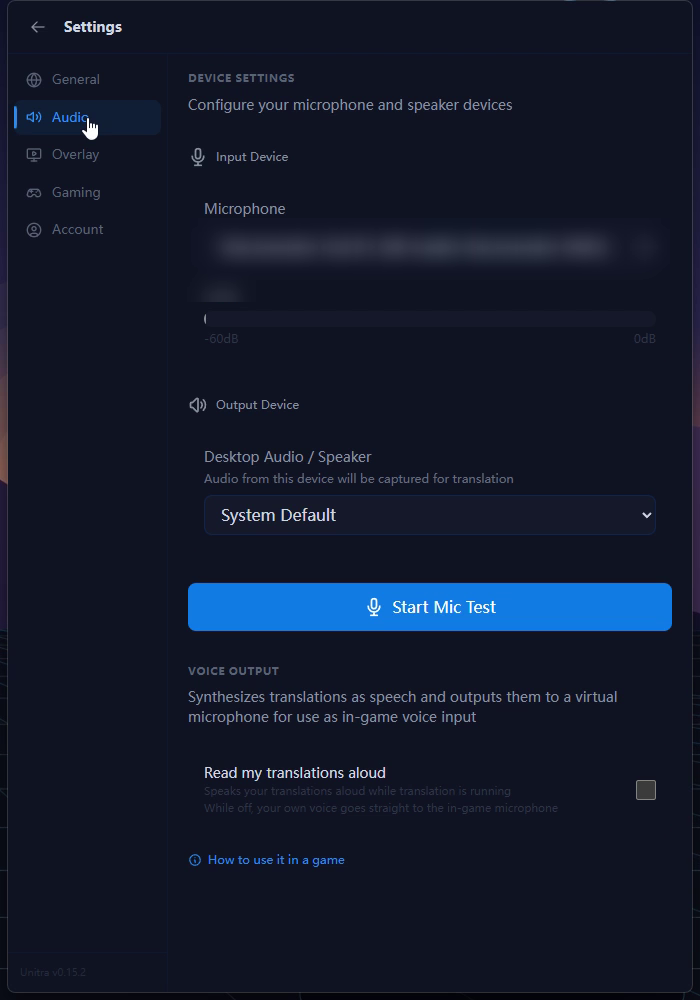
Open Settings > Audio. Voice Output sits below your microphone and desktop audio devices.
2. Turn on Read my translations aloud
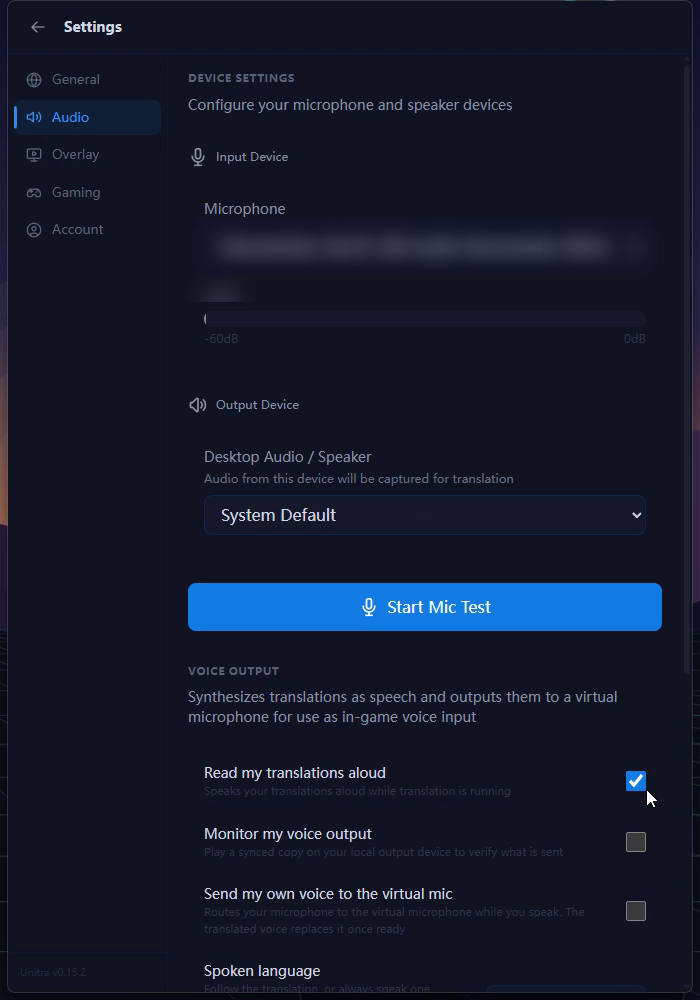
Scroll down to Voice Output and turn on Read my translations aloud. The first time, a short guide called How to use it in a game pops up with the steps below. You can open it again later from its link in the same section.
Before it starts, Unitra checks your graphics card. If a game is already using most of its memory, it tells you and asks whether to Turn it on anyway or Leave it off. On a graphics card that is not supported, Voice Output cannot be turned on.
3. Let the first-time setup finish
The first time, a Setting up voice output card walks through four steps: Voice runtime, Voice model, Unitra microphone and Preparing the voice. This happens once.
Installing the Unitra microphone needs Windows administrator permission, and Windows asks for it once. If you decline, the rest still finishes, and you can install the microphone later with Install Unitra microphone. If a step fails, the card shows Retry, and a few steps ask you to Restart now.
4. Pick a voice and test it
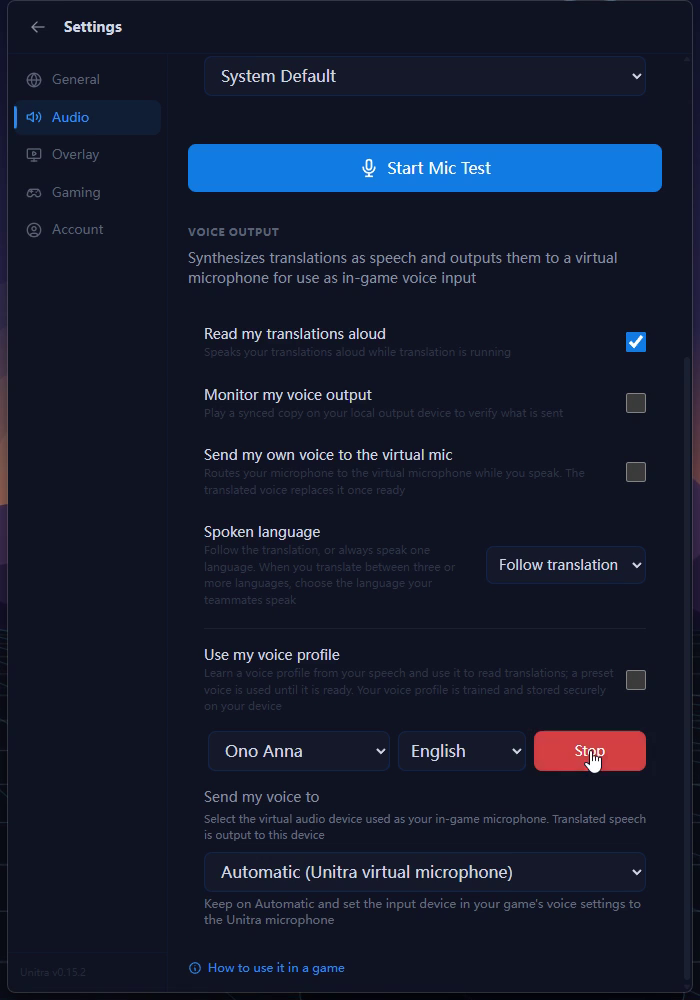
Choose a Preset voice and click Test voice to hear how it sounds.
If you would rather sound like yourself, turn on Use my voice profile. Unitra learns your voice in the background while you translate, and switches to it automatically once it is ready. Until then, the preset voice speaks. Your voice profile is trained and stored on your PC.
5. Set your game's microphone to the Unitra microphone
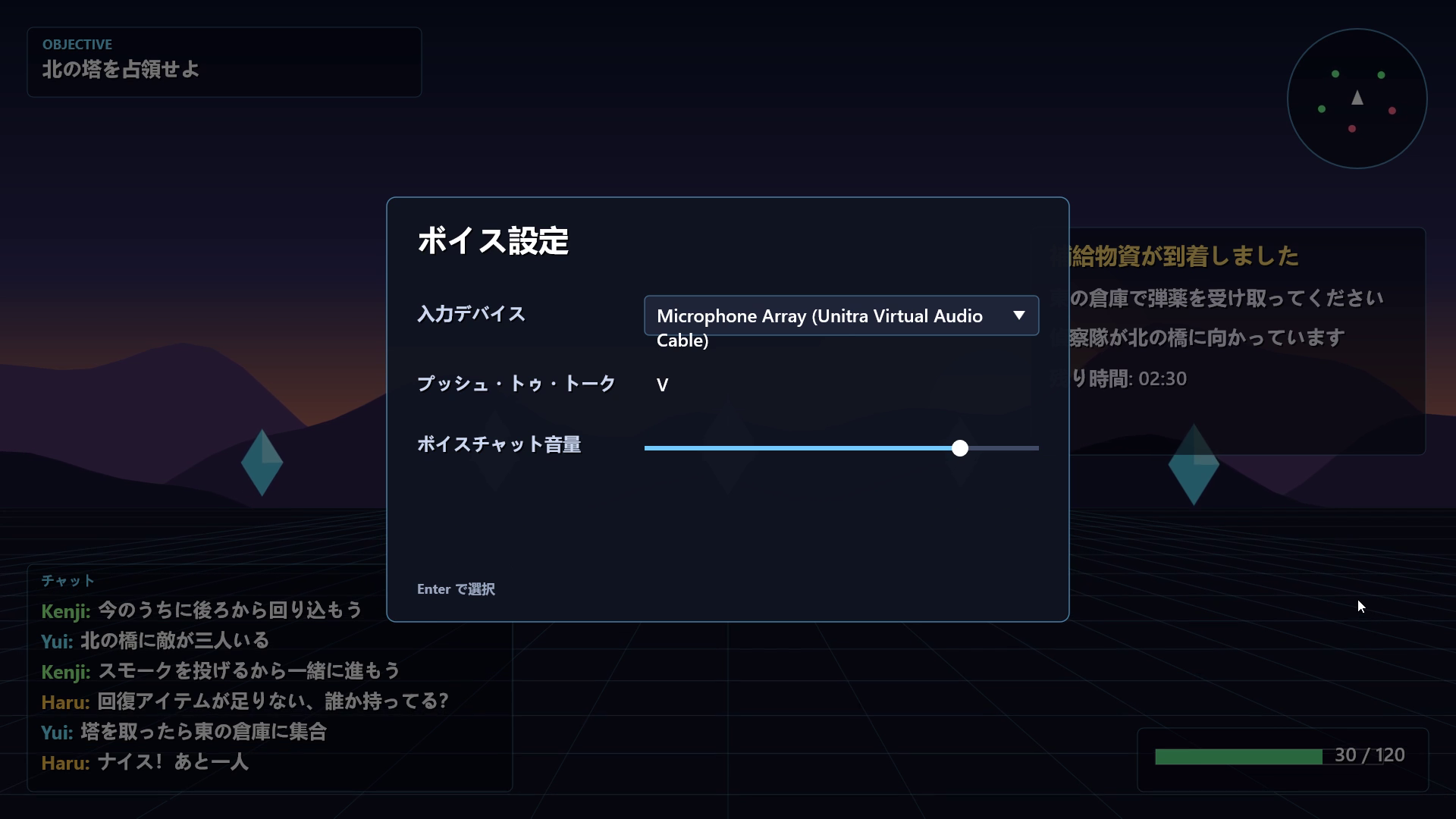
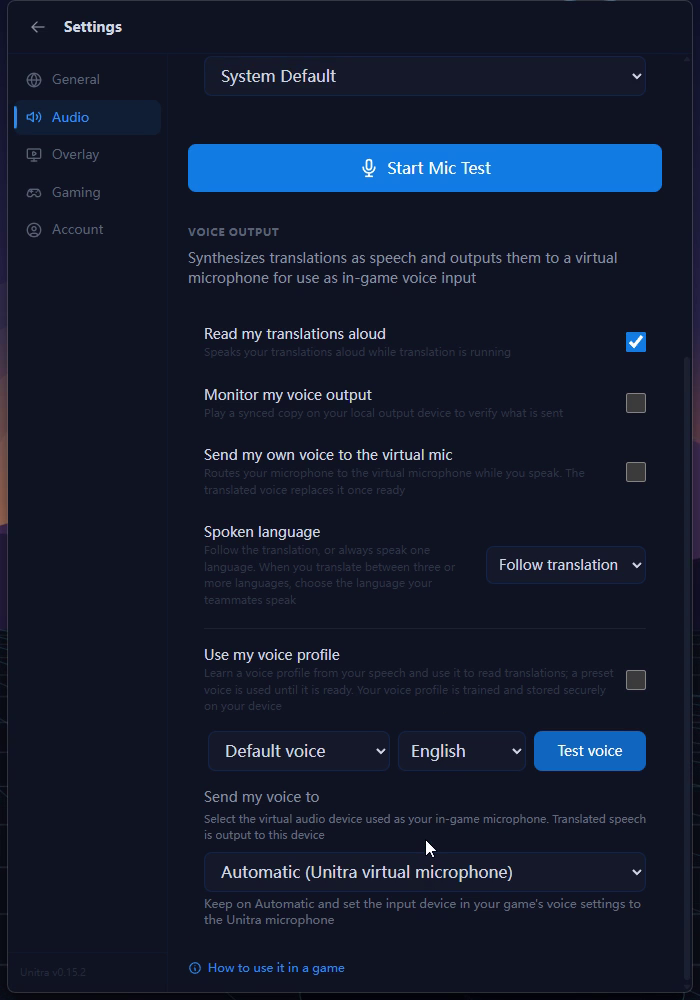
In Unitra, leave Send my voice to on Automatic (Unitra virtual microphone).
Then, in your game's voice settings, or in Discord, set the input device (microphone) to the one whose name ends in (Unitra Virtual Audio Cable). On an English copy of Windows it is called Microphone Array (Unitra Virtual Audio Cable); the first part of the name follows your Windows language.
You can leave the game set to this microphone all the time. While Voice Output is off, your own voice goes straight through the Unitra microphone to the game, so teammates hear you as usual.
6. Start translating and talk
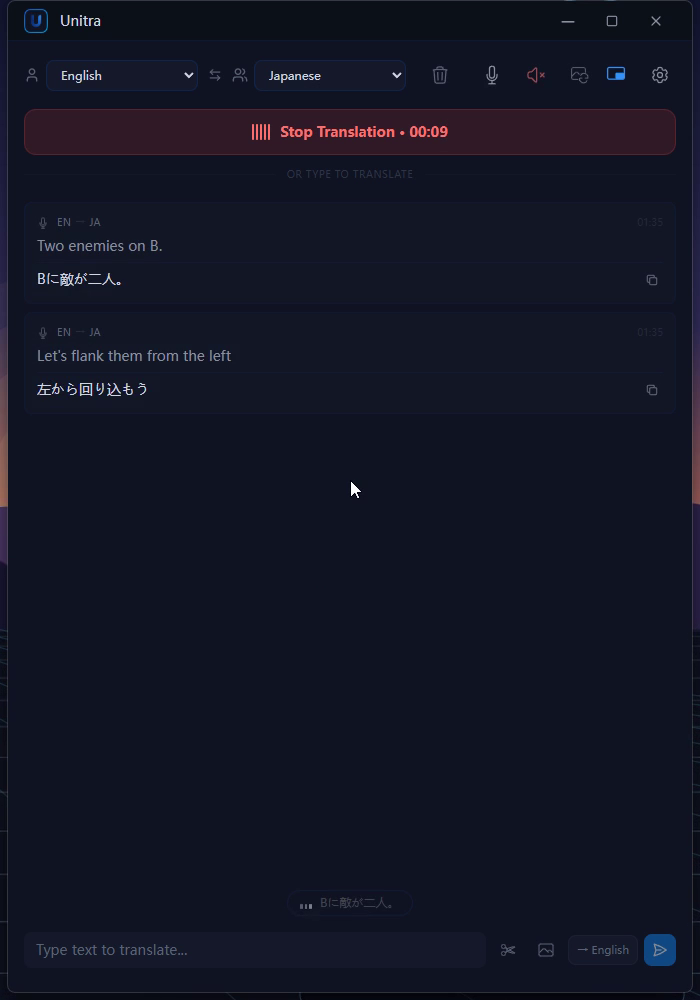
Click Start Translation and talk as usual. Use push-to-talk or voice activation in your game the same way you always do.
Each sentence is spoken after you finish it, not while you are still talking. This is sentence-by-sentence translation, not simultaneous interpretation, so short, complete sentences work best.
7. Monitor your voice, and fix the spoken language for mixed lobbies
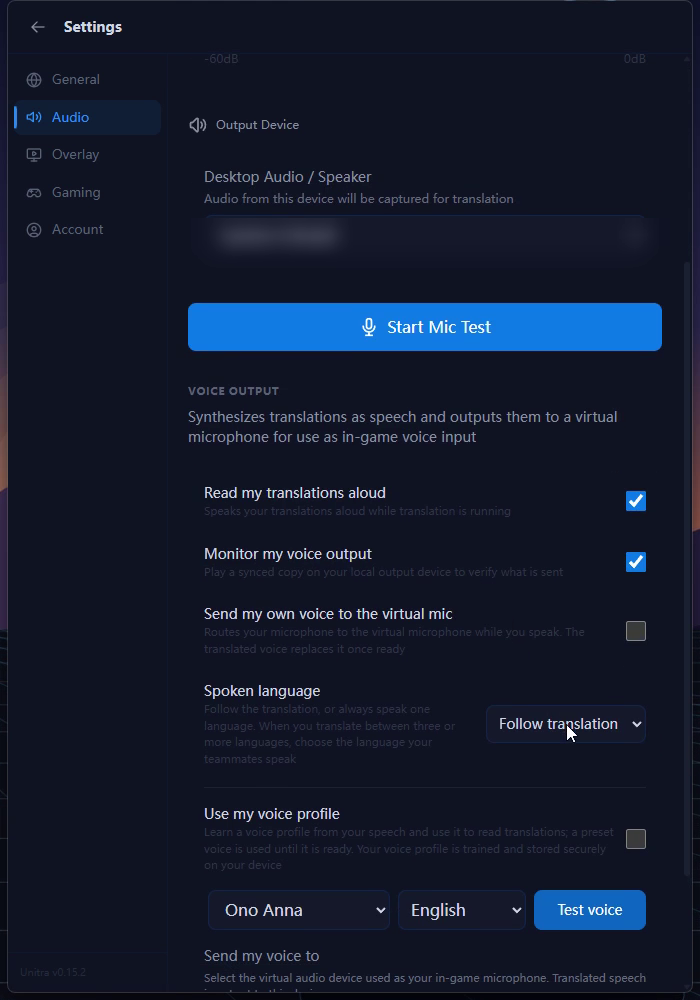
Turn on Monitor my voice output to hear what your teammates hear on your own headphones.
Spoken language is set to Follow translation, so Unitra speaks the language you translate into. If you play with people who speak three or more languages, set it to one fixed language, the one your teammates share. If you already said a sentence in that language yourself, nothing extra is spoken.
Send my own voice to the virtual mic passes your real voice through to the game while you speak, and the translated voice replaces it once it is ready. Leave it off if you only want teammates to hear the translation.
If something looks off
- "Teammates can't hear your translations". The Unitra microphone is not installed, or was removed. Go to Settings > Audio > Voice Output and click Install Unitra microphone.
- "Voice output paused briefly". Your graphics card ran out of memory, usually because the game is using most of it. Some sentences are skipped, and Voice Output recovers on its own once memory frees up. Lowering the game's graphics settings helps.
- Teammates hear nothing. Check that the game's or Discord's input device is the (Unitra Virtual Audio Cable) microphone, and that you are using push-to-talk or voice activation as usual.
- Nothing is spoken for some sentences. If Spoken language is fixed and you already said the sentence in that language, Unitra does not repeat it.
- Setup stopped partway. Click Retry. If the card asks you to restart, click Restart now.
More Unitra tutorials
- Getting started with Unitra: from first launch to live translation
- Unitra Overlay Studio: design your own subtitles
- Unitra screen translation: translate game chat and on-screen text
- Unitra in fullscreen games: subtitles with the Xbox Game Bar widget
- Put live translated subtitles on your stream
If something does not work as expected, let us know in Discord.