Unitra's subtitles normally float in an always-on-top window over your game. Games in borderless or windowed mode keep showing that overlay and need nothing from this guide. Some games running in exclusive fullscreen, though, draw over everything, including the overlay. Fullscreen game support fixes that with a small Xbox Game Bar widget that shows the same subtitles on top of the game.
Fullscreen game support is free on every plan. It works on Windows 10 (version 2004 or later) and Windows 11, and needs Xbox Game Bar, which comes with Windows. You set it up once.
The screenshots and the video are from Unitra AI Desktop 0.15 on Windows.
Prefer to watch? Here is the same setup on video:
1. When the overlay is covered, Unitra shows a guide
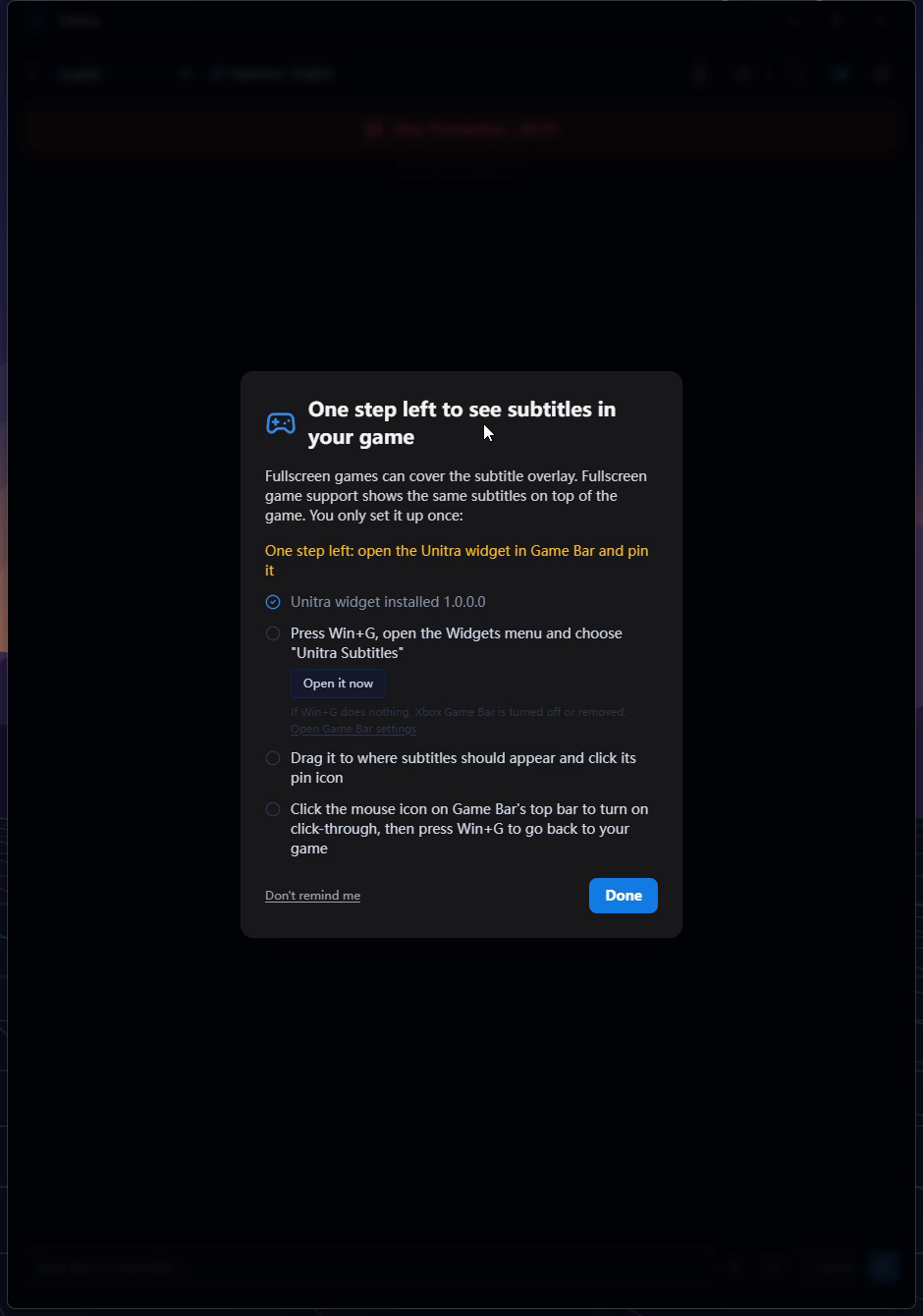
While translation is running with an exclusive fullscreen game in front, and the widget is not pinned yet, Unitra shows a guide: Can't see subtitles in your game? Turn on fullscreen game support. Unitra flashes its taskbar button, and the guide waits in the main window until you switch out of the game. It shows at most once every 30 minutes and closes by itself once the widget is pinned. Don't remind me turns the reminders off.
You do not have to wait for the guide. The same steps are always in Settings > Overlay > Fullscreen game support.
2. Install the Unitra widget for Xbox Game Bar
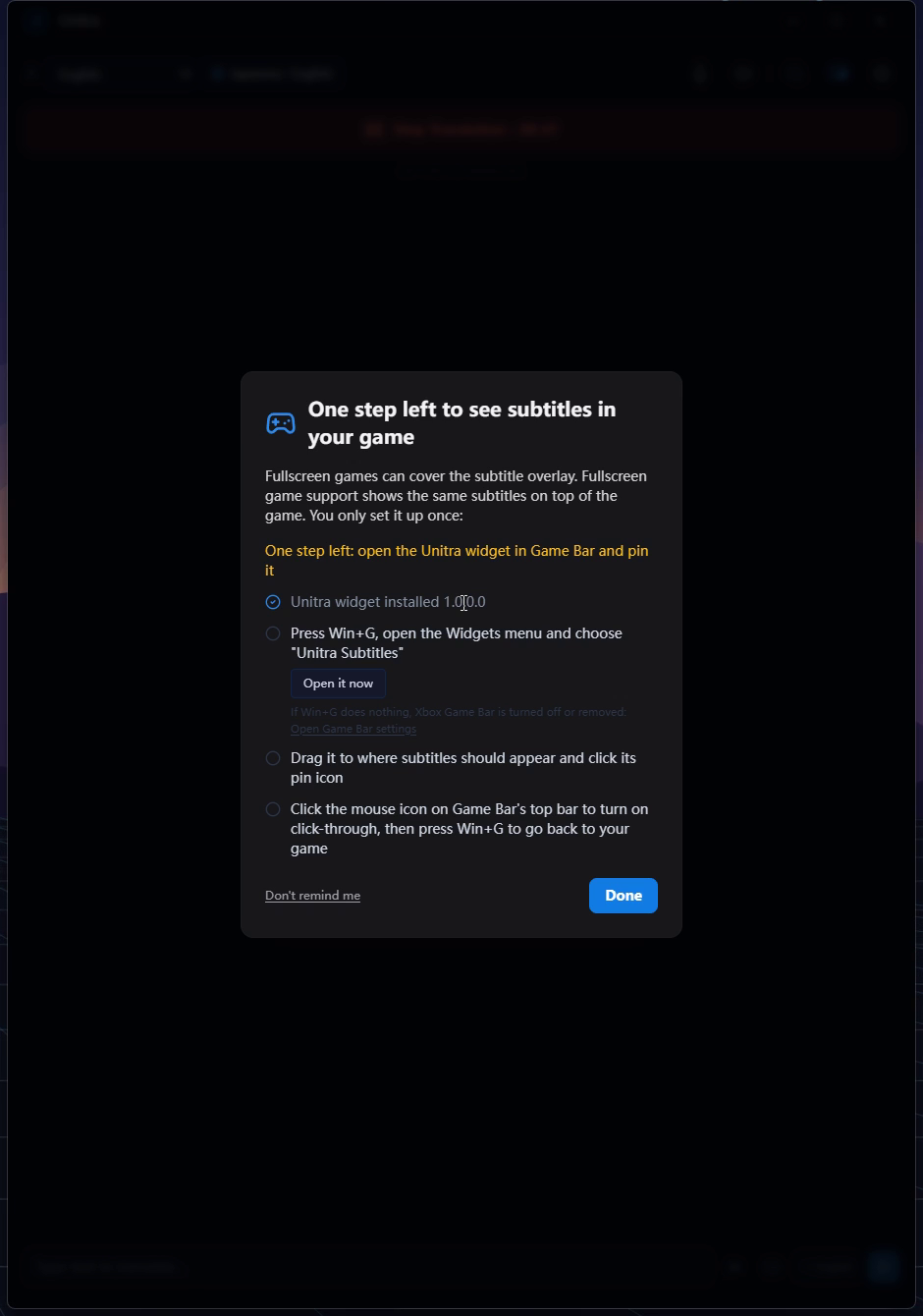
Click Get it from the Microsoft Store. The Store opens on Unitra Subtitles for Xbox Game Bar. Install it. It is free, and the Store keeps it updated. When you come back to Unitra, the step shows a check mark and Unitra widget installed with the widget's version number.
If Xbox Game Bar itself is missing from your PC, Unitra shows Get Xbox Game Bar (free) first. Install that from the Store too, then come back.
3. Open Unitra Subtitles from the Widgets menu
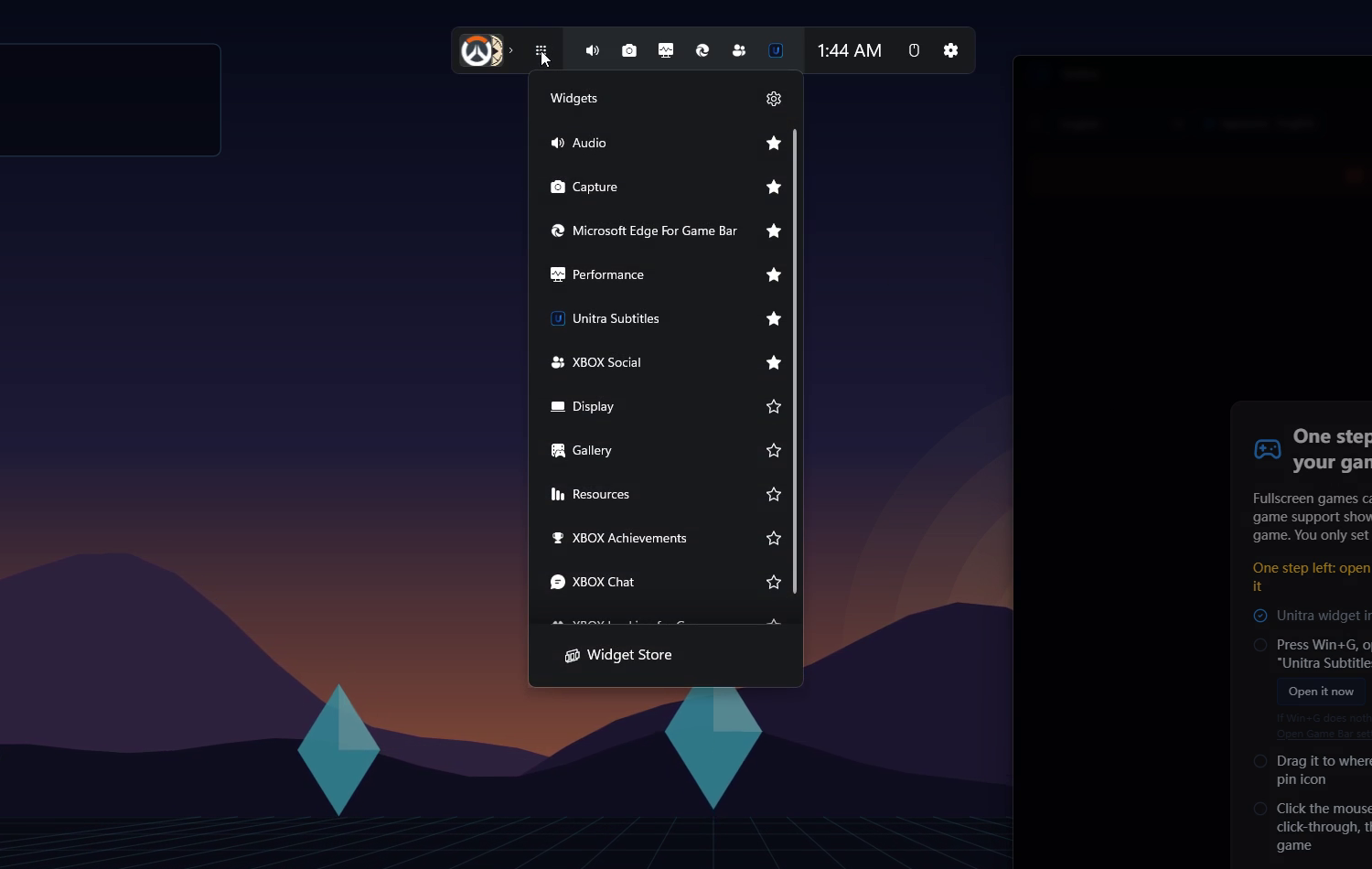
Press Win+G to open Xbox Game Bar, open the Widgets menu and choose Unitra Subtitles. The Open it now button in Unitra does this for you.
If Win+G does nothing, Game Bar is turned off in Windows. Click Open Game Bar settings in Unitra and turn it on.
4. Drag it into place and pin it
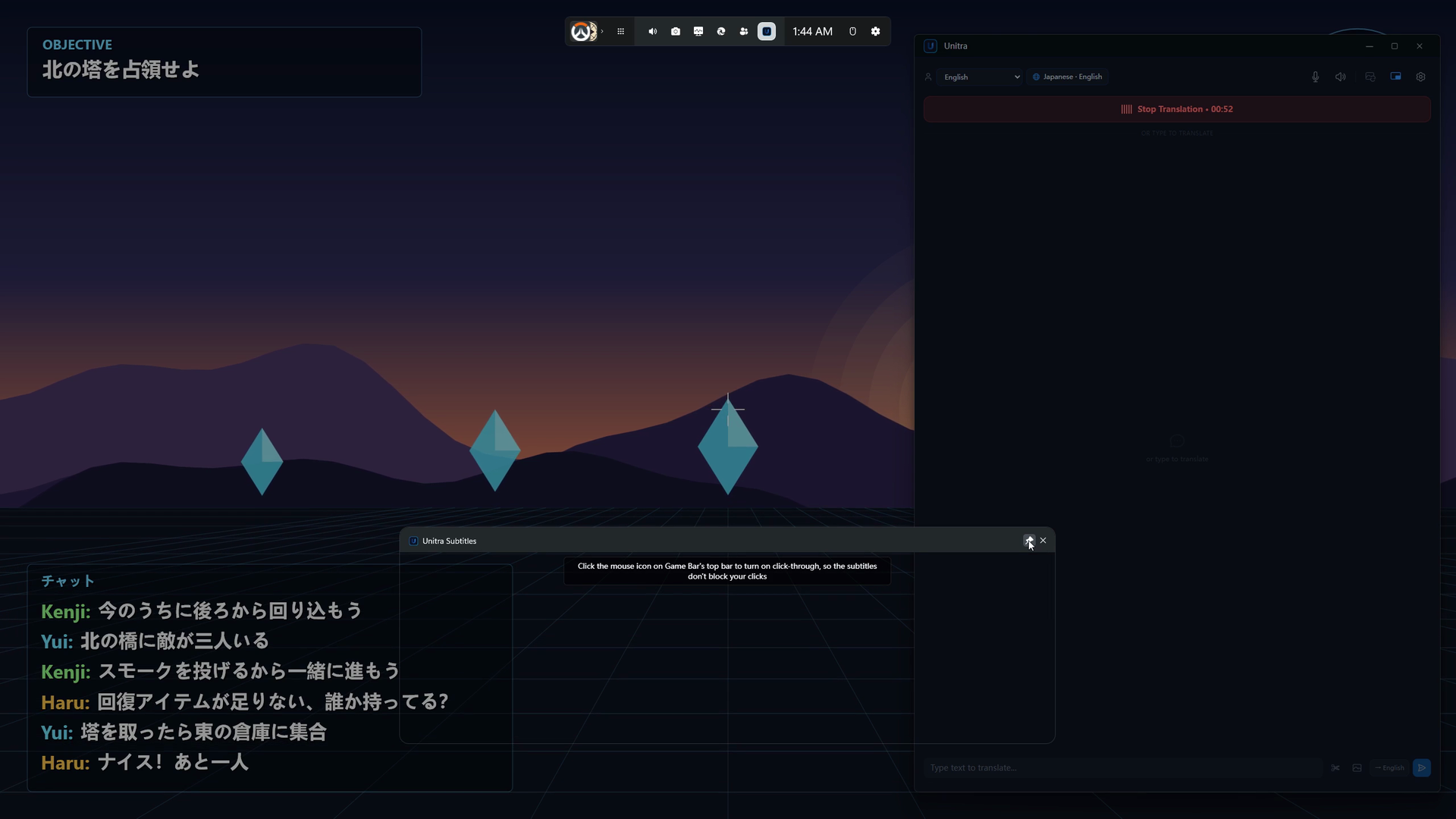
Drag the widget to where you want the subtitles to appear and resize it if you like. Then click its pin icon. A pinned widget stays on screen after you close Game Bar; without the pin, it disappears with Game Bar. While Game Bar is open, the widget itself reminds you to click the pin.
5. Turn on click-through and go back to the game
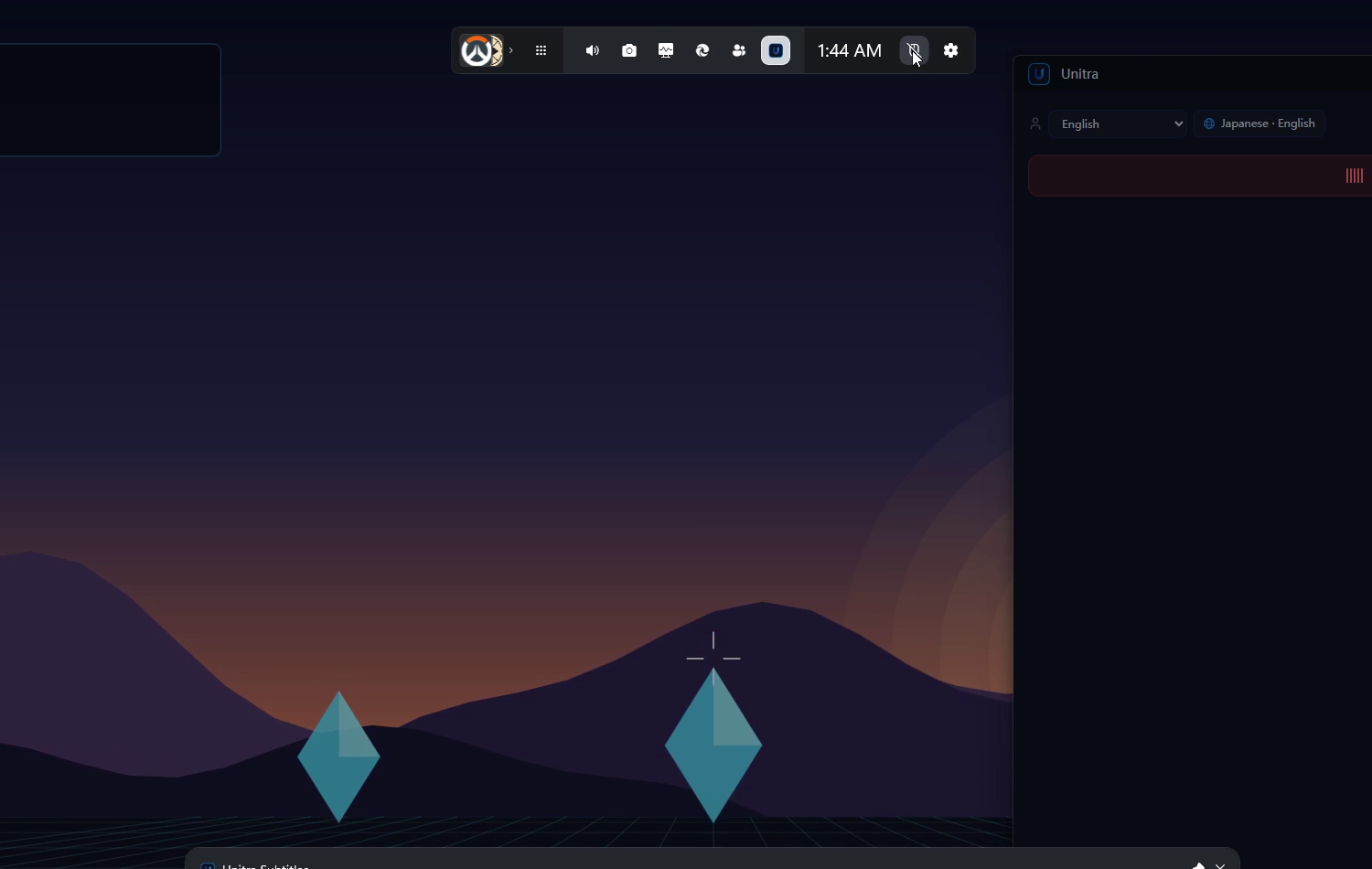
Click the mouse icon on Game Bar's top bar to turn on click-through, so the subtitles never catch your clicks. This switch applies to every pinned Game Bar widget. Then press Win+G to go back to your game.
6. Play with subtitles on top
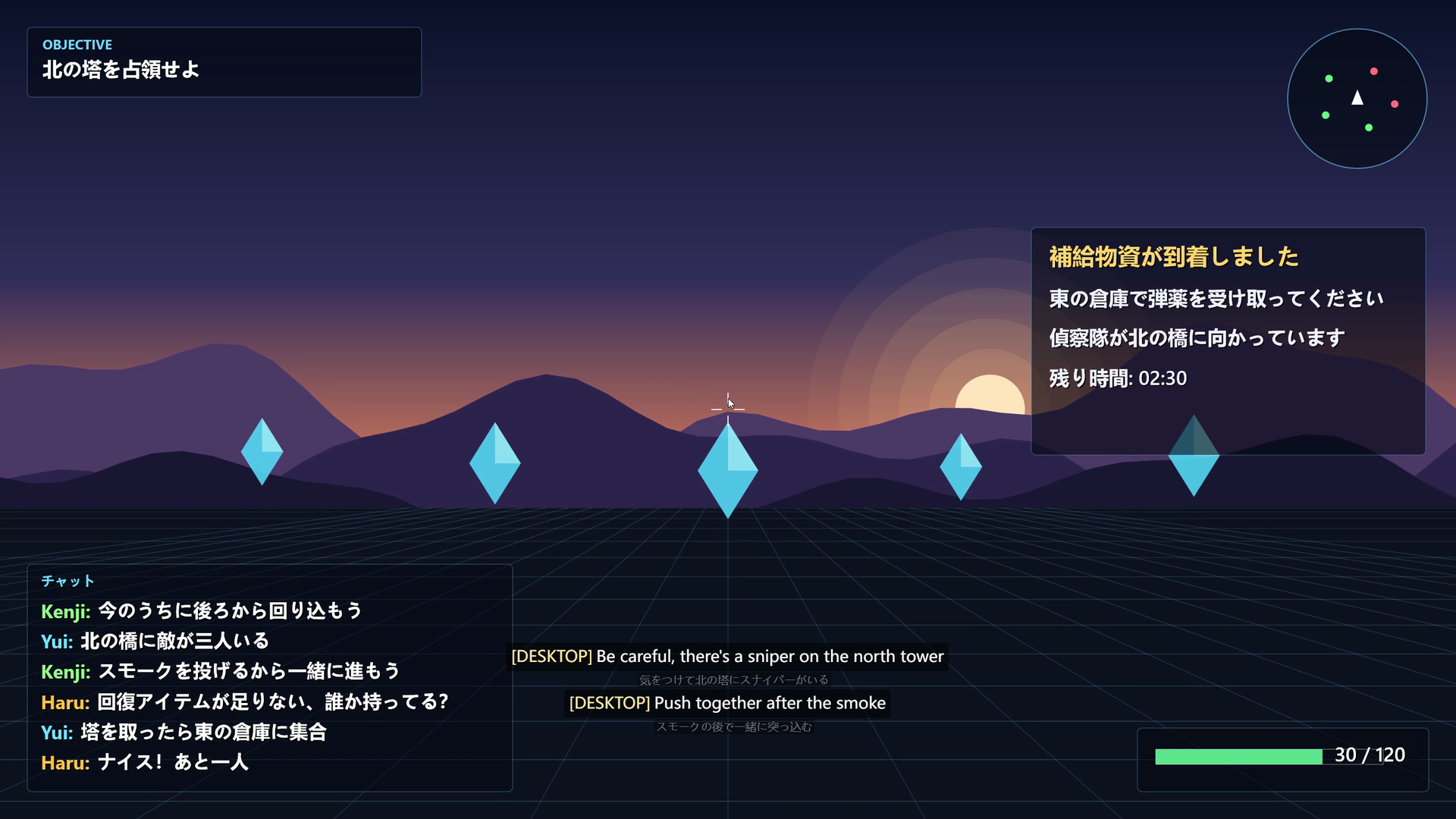
That's it. Your subtitles now show on top of the fullscreen game. The widget shows the same subtitles as the overlay, in the look you designed in Overlay Studio, and screen translation results show there too.
Subtitles move to the widget only while you are translating with an exclusive fullscreen game in front and the widget pinned. The rest of the time Unitra's own overlay shows them and the widget stays empty. Game Bar's own opacity slider for the widget changes only the subtitle background, not the text.
7. Check the status in Settings
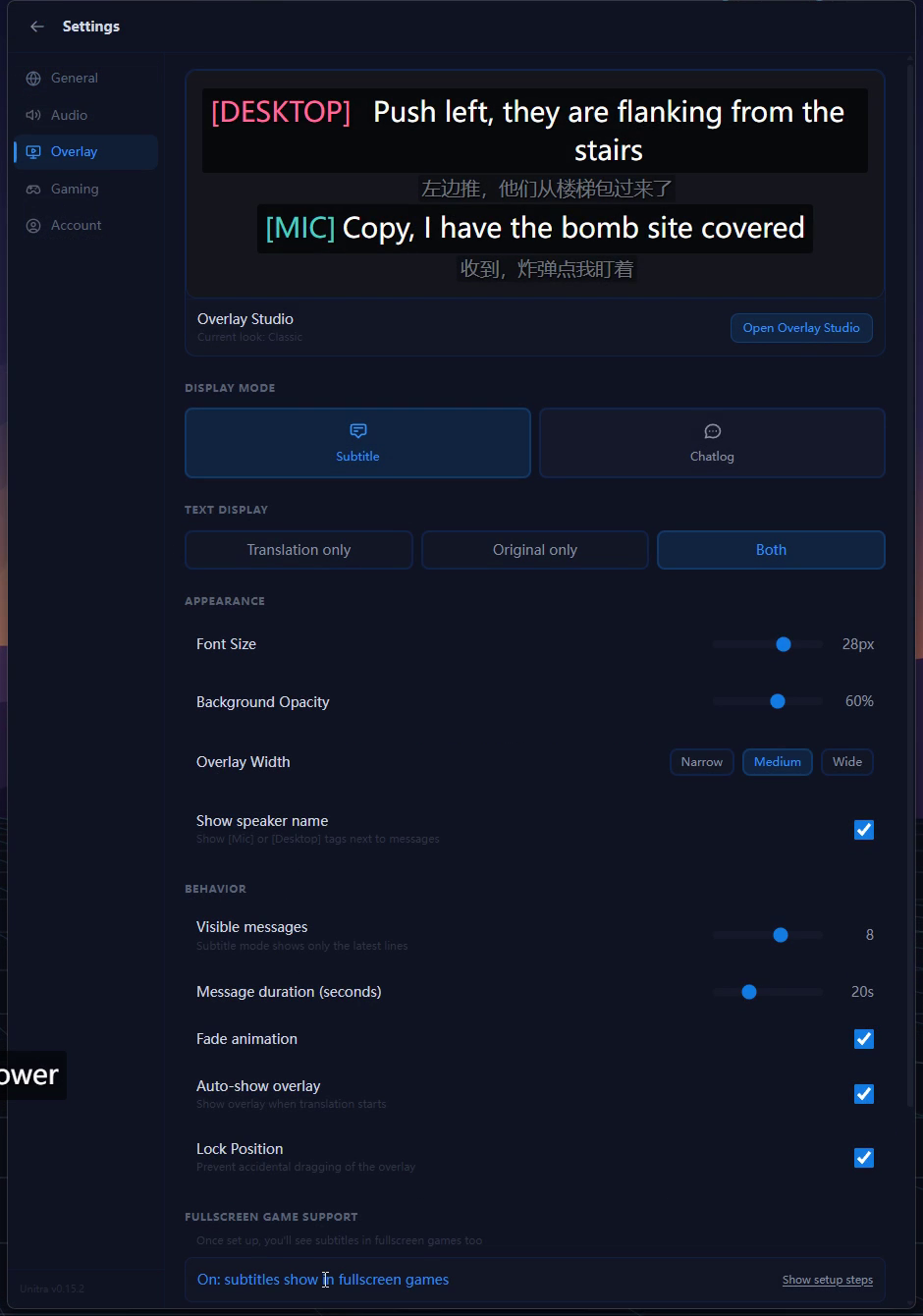
You only do this once. Check it any time under Settings > Overlay > Fullscreen game support. The status line tells you where you are:
- On: subtitles show in fullscreen games means you are done.
- Almost done: turn on click-through so the subtitles don't block your mouse means step 5 is left.
- One step left: pin the Unitra widget in Game Bar means step 4 is left.
- Off: set it up once to see subtitles in fullscreen games means the widget is not installed yet.
If you turned the reminders off, the same place shows Turn them back on.
Once setup is done, the steps are hidden. Click Show setup steps to see them again.
If something looks off
- Win+G does nothing. Xbox Game Bar is turned off or removed. Use Open Game Bar settings to turn it on, or Get Xbox Game Bar (free) to install it.
- The subtitles disappear when I close Game Bar. The widget is not pinned. Press Win+G and click its pin icon.
- The widget blocks my mouse. Click-through is off. Press Win+G and click the mouse icon on Game Bar's top bar.
- The widget is empty. It only shows subtitles while you are translating in an exclusive fullscreen game. Click Start Translation in Unitra.
- "Unitra Subtitles" appears twice in the Widgets menu. An earlier version of Unitra installed its own copy of the widget. Uninstall that older copy and keep the Store version.
More Unitra tutorials
- Getting started with Unitra: from first launch to live translation
- Unitra Overlay Studio: design your own subtitles
- Unitra screen translation: translate game chat and on-screen text
- Unitra Voice Output: let your teammates hear you in their language
- Put live translated subtitles on your stream
If something does not work as expected, let us know in Discord.