Not everything in a game is spoken. Screen translation reads the text on your screen, such as game chat, quest text or menus, and translates it as new lines appear. The translations show up in the overlay and in Unitra's main window, next to your voice translations.
Automatic screen translation is included with Day Pass and Champion, on Windows. One-off screenshot translation (step 7) works on every plan, including Free. It reads Chinese, Japanese, Korean, English and languages written in the Latin alphabet. You need Unitra AI Desktop 0.15 or newer.
The screenshots and the video are from Unitra AI Desktop 0.15 on Windows.
Prefer to watch? Here is the same setup on video:
1. Press and hold the image button in the toolbar
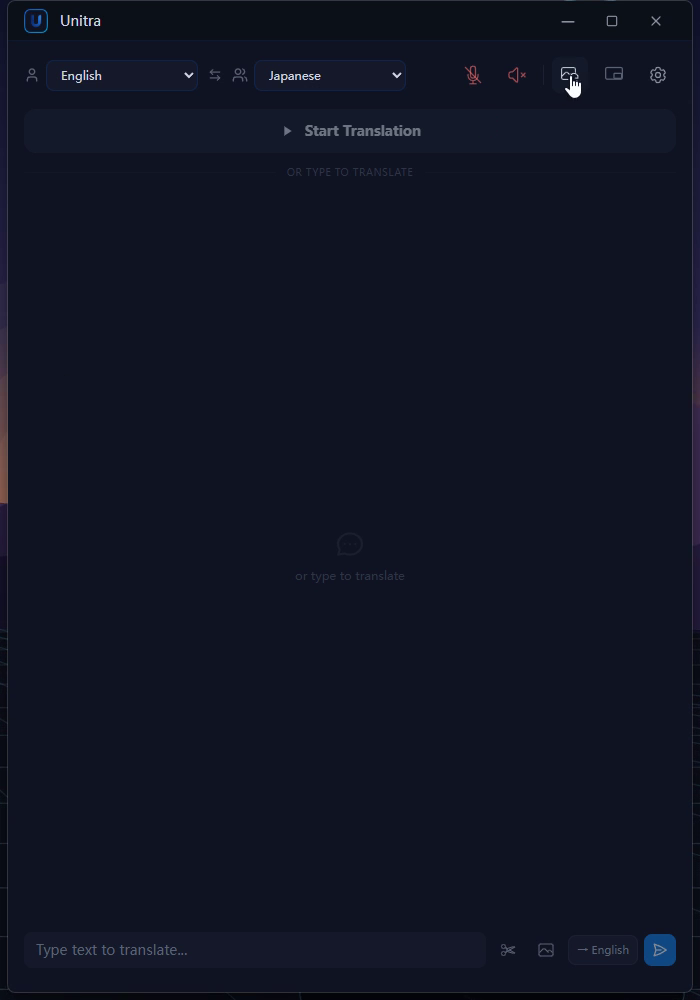
In the toolbar, find the image button with a small refresh mark. Its name is Automatic text recognition. Press and hold it to open its settings.
A single click on the same button turns automatic screen translation on or off. You will use that in step 5. You can also reach the settings from Settings > General > Automatic text recognition > Recognition settings.
2. Choose what to read
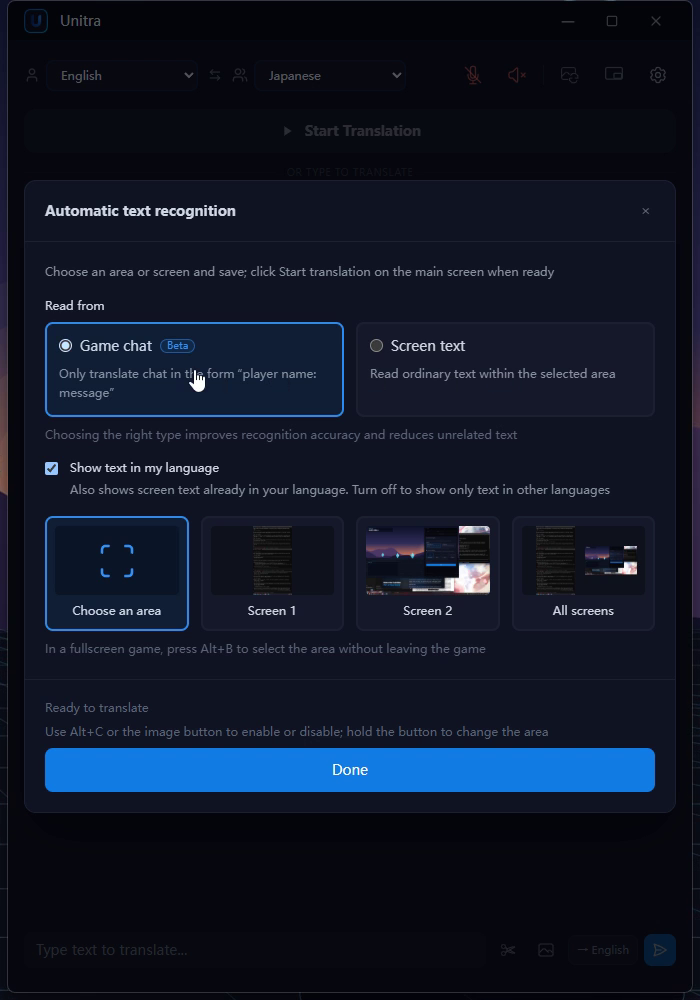
Under Read from, pick the kind of text:
- Game chat (Beta) only translates lines shaped like "player name: message". Everything else in the area, such as kill feeds or the HUD, is ignored. Results can vary between games while we keep improving it.
- Screen text is the default. It reads all ordinary text in the area, which suits quest logs, item descriptions, menus and subtitles.
Show text in my language is on by default. Turn it off to hide lines that are already in your language, so only the foreign ones are shown.
3. Choose an area around the chat
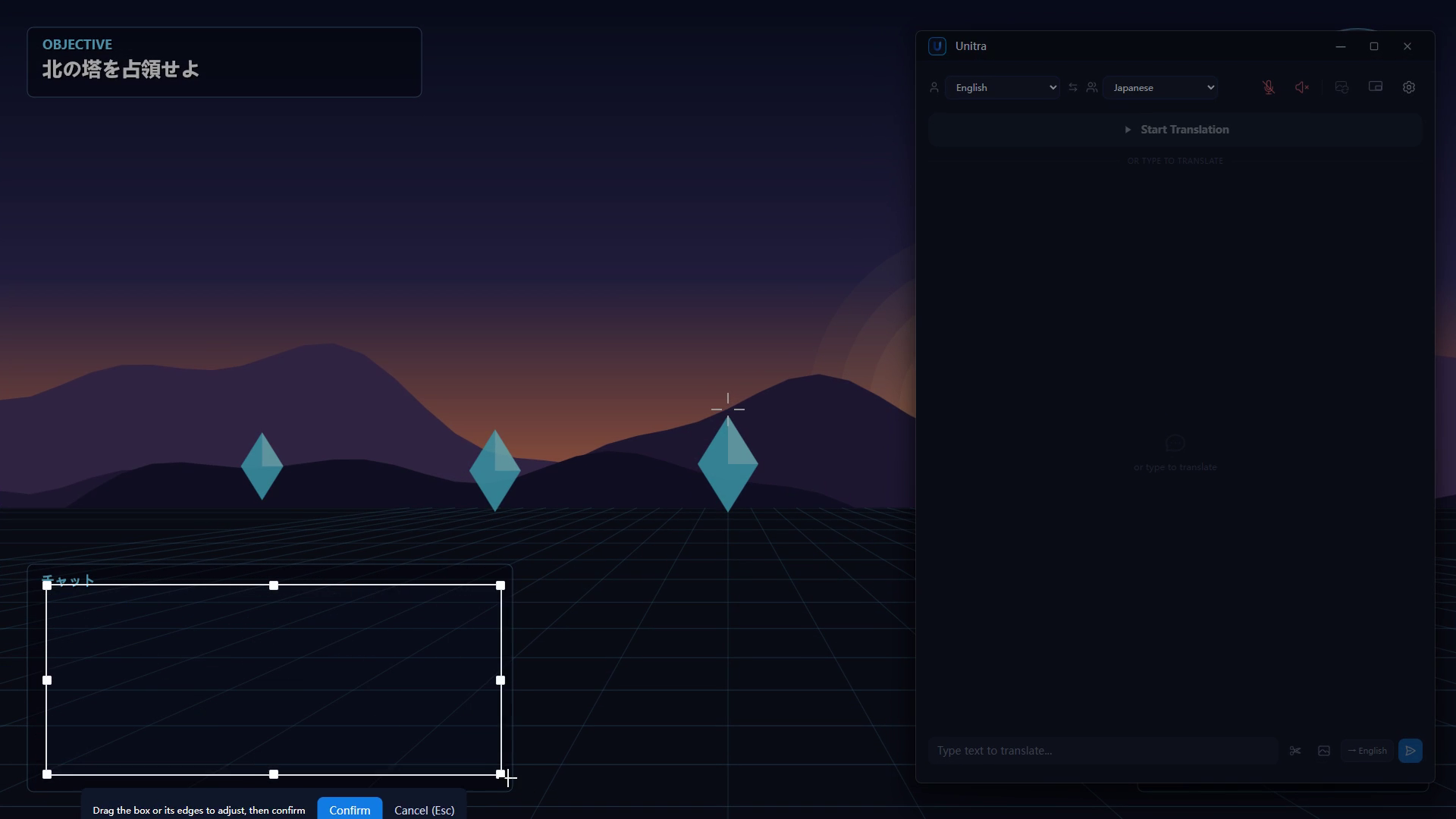
Click Choose an area. Your screen freezes so you can drag a box around the chat, or around whatever text you want translated. A smaller box around just the text gives better results than a large one with the whole game in it.
If you want everything instead, pick a screen card (Screen 1, Screen 2 and so on) or All screens to translate a whole display.
4. Adjust the edges, confirm, then Done
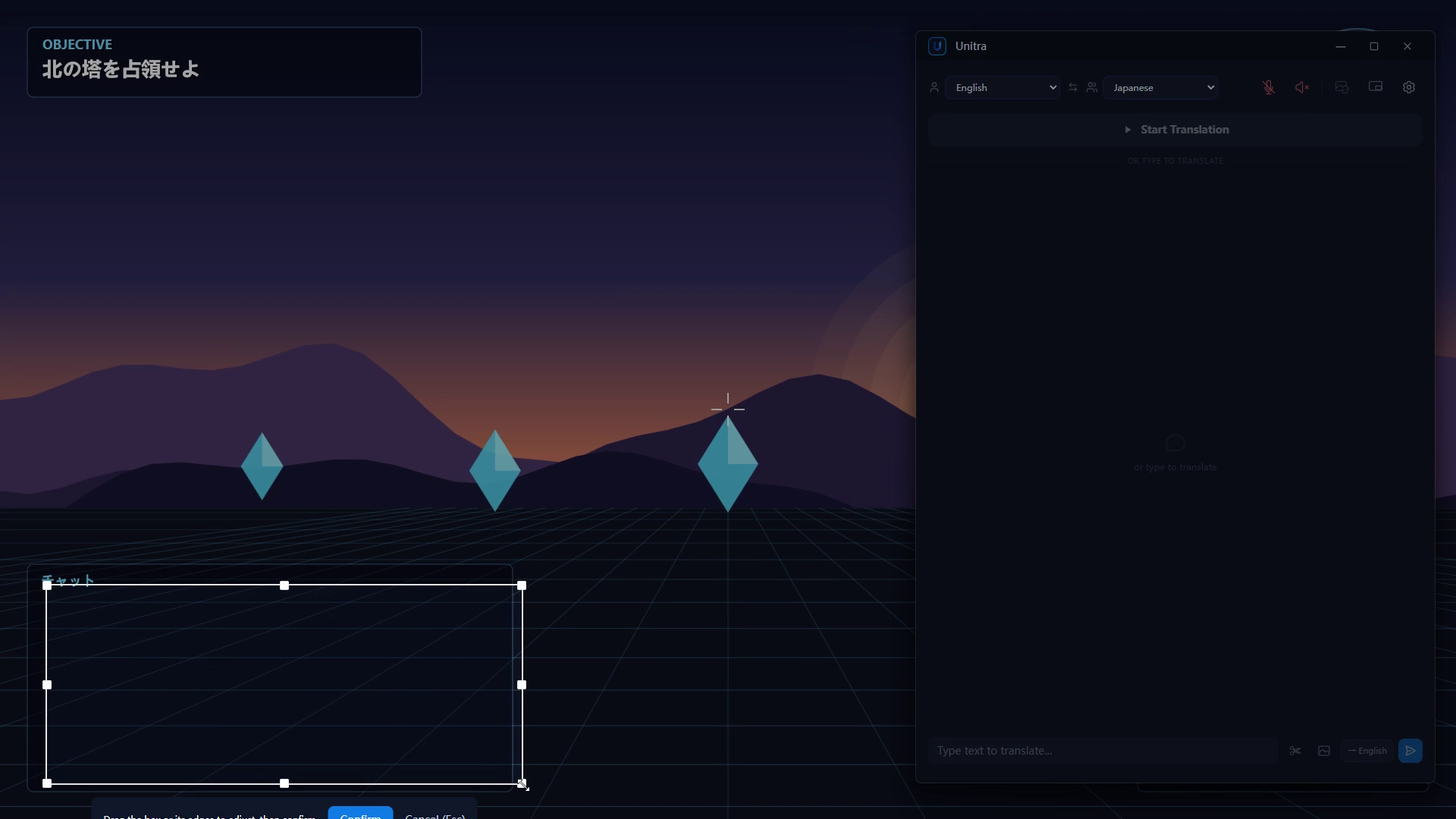
Drag the box or any of its eight handles to adjust it. The arrow keys nudge it a little at a time. Press Enter or click Confirm to keep it, or Esc to cancel. Back in the settings, click Done.
If screen translation is already running when you change something here, the change takes effect when you click Done.
5. Turn it on, then start translation
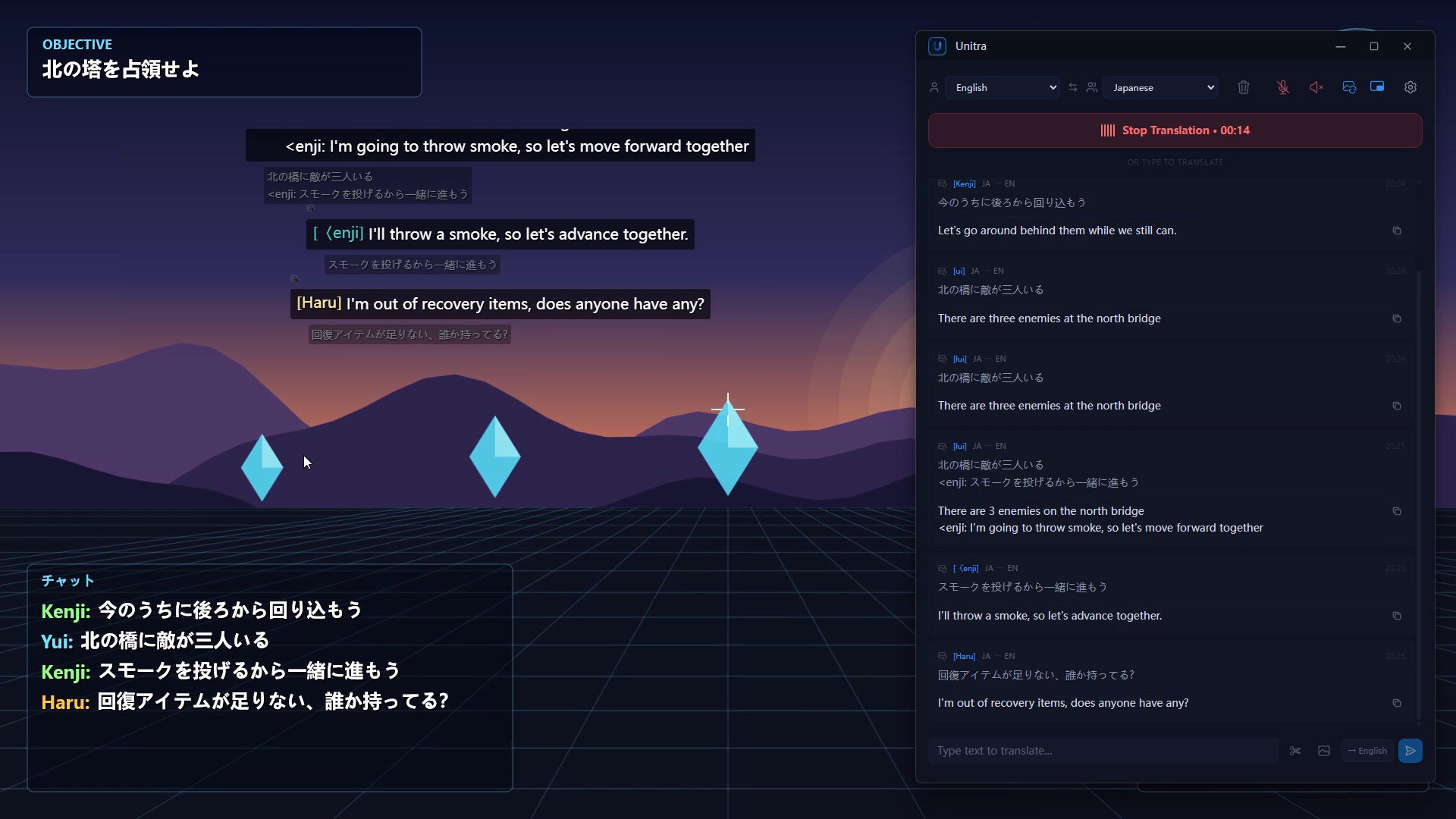
Click the image button once to turn screen translation on. Then click Start Translation. Voice translation and screen translation start together. If translation is already running, screen translation starts as soon as you turn it on.
New chat lines are translated as they appear. They show in the overlay and in the main window's history, where they are tagged Screen translation. In an exclusive fullscreen game they appear in the Xbox Game Bar widget instead (see subtitles in fullscreen games).
6. Hotkeys for fullscreen games
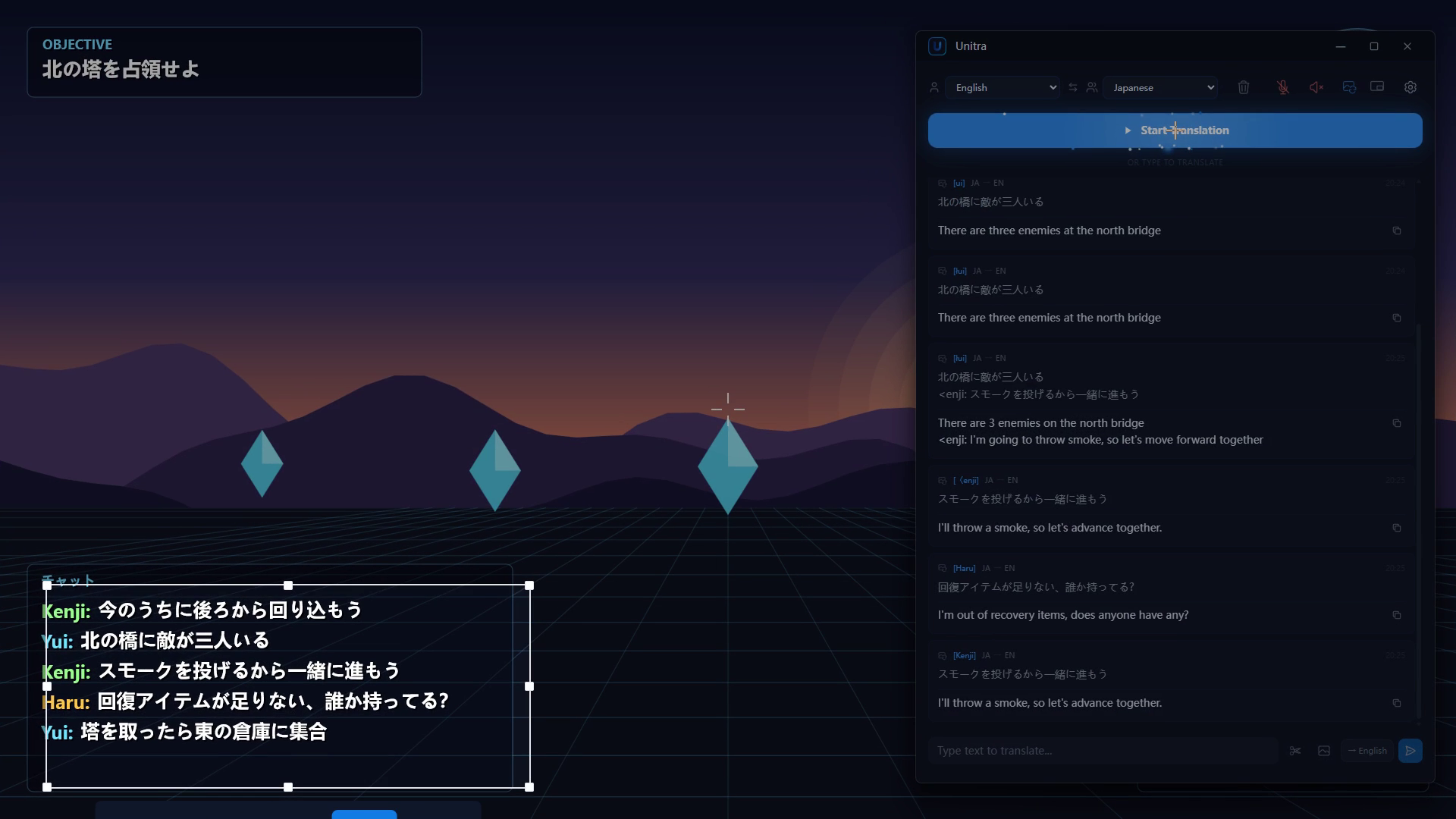
Unitra remembers the area for each game, for up to 32 games, so the next time you open the same game the area is already set.
In a fullscreen game you do not have to leave the game to change it:
- Alt+B opens the area selector right over the game. When you confirm, you see "Translation area saved".
- Alt+C turns screen translation on or off.
- Alt+T starts or stops translation.
You can change these shortcuts in Settings > General.
7. One-off screenshot translation
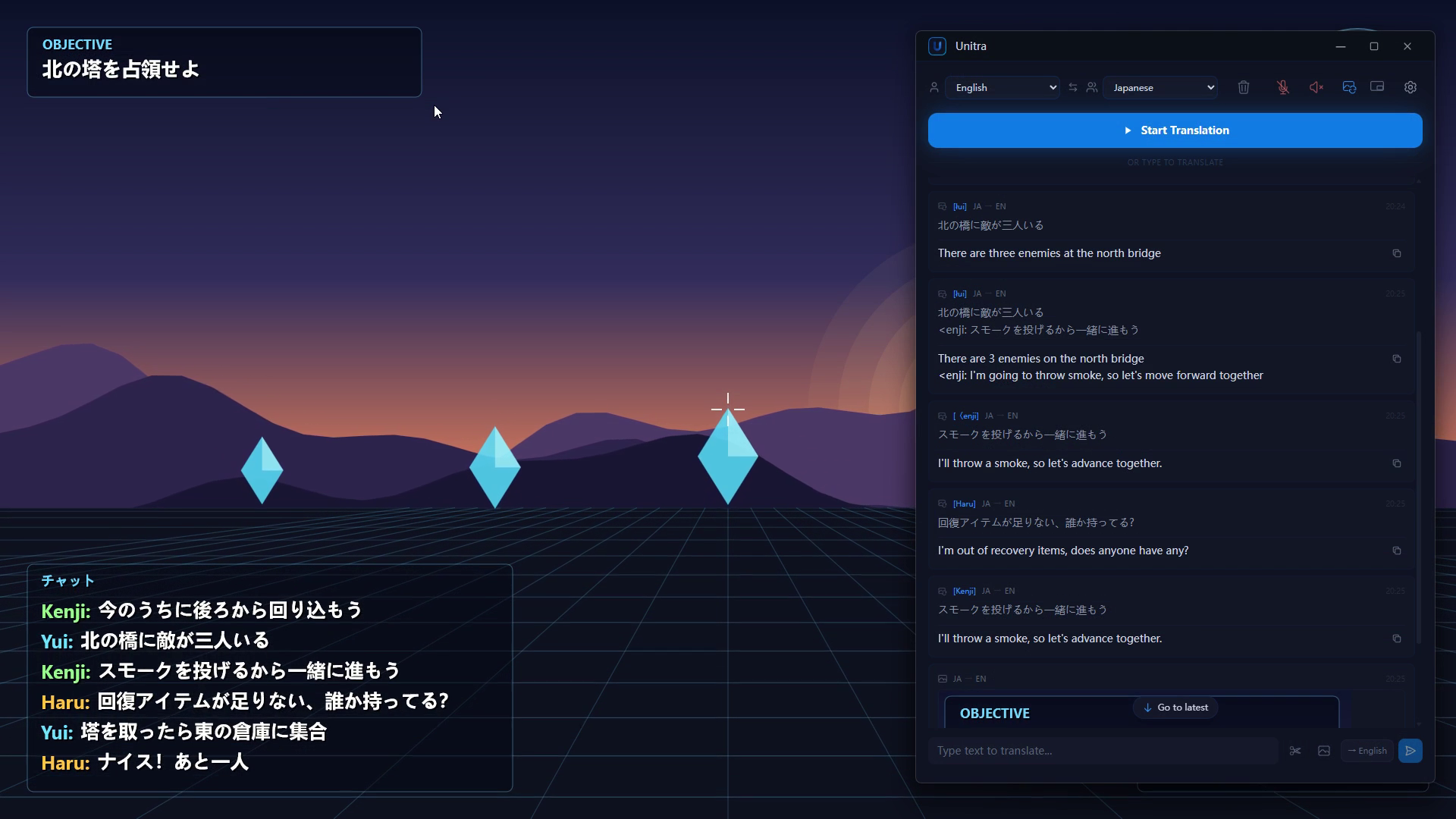
For a single translation, press Alt+X or click Screen Snip and select any text. It opens the same selector over all your screens. Unitra detects the language of the text by itself and translates everything in the picture.
You can also click Upload image, or press Ctrl+V in the main window to paste an image you copied. All of these work on the free plan too. You need to be signed in for the translation.
If something looks off
- "Finish selecting the translation area first". An area selection is still open. Finish it with Confirm or cancel it with Esc, then try again.
- It asks you to choose the area again. A display was changed, disconnected or rearranged since you saved the area. Select it again. Do the same if you move the game window.
- It feels slower on an HDR screen. Unitra falls back to a slower capture method on HDR displays. Results still come through.
- No translations show in a fullscreen game. Exclusive fullscreen covers the overlay. Set up fullscreen game support so the results show in the Game Bar widget.
- Game chat misses lines. Game chat only picks up "player name: message" lines. If your game formats chat differently, switch to Screen text.
More Unitra tutorials
- Getting started with Unitra: from first launch to live translation
- Unitra Overlay Studio: design your own subtitles
- Unitra Voice Output: let your teammates hear you in their language
- Unitra in fullscreen games: subtitles with the Xbox Game Bar widget
- Put live translated subtitles on your stream
If something does not work as expected, let us know in Discord.